Showing posts with label Talend. Show all posts

Saturday, 20 August 2016

Input:

       In the below text wherever FLOWCELL is there, it should be replaced into "*" ie) for each FLOWCELL -> the output should be, ********.note that it should be dynamically.


resourceTypevalue | resourceTypeIdImager_3
lx-obc-02 |BASECALLER
resourceTypevalue | resourceTypeId
GS90780-FS3 | FLOWCELL
Nest_20 | NEST
Imager_1 |IMAGER
lx-obc-01 |BASECALLER
GS86184-FS3 | FLOWCELL
Nest_7 |NEST
Imager_3 |IMAGER
lx-obc-02 |BASECALLER
resourceTypevalue | resourceTypeId
GS90780-FS3 | FLOWCELL
Nest_20 | NEST
Imager_1 |IMAGER
lx-obc-01 |BASECALLER
GS86184-FS3 | FLOWCELL
Nest_7 |NEST
Imager_3 |IMAGER
lx-obc-02 |BASECALLER
resourceTypevalue | resourceTypeId
GS90780-FS3 | FLOWCELL


                The tHash  components used to store the data temporarily in cache memory like tBuffer components. But the tHash components are faster than tBuffer components. 


                The field separator given here is "pipe separator". 


               First the context variable is given as "s" with string datatype and also a default value "FLOWCELL" is typed. Then, another context variable named "star" is given with a string datatype and no value is provided. This empty space enables to store the * asterisk values one by one. 
                context.s.length() checks the length of given string value. Here, in this example, length of the FLOWCELL is 8. Therefore, 8 numbers of * asterisk symbols will be generated. 


THANK YOU. 

Thursday, 18 August 2016

How to retrieve letters only from given names which is mixed with numbers

                         Input


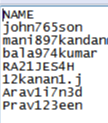
                Note that the input data has numbers mingled in it. So, we need to separate those numbers and letters apart and place them into two different columns. 


         In the tMap, we have to give the expression to replace all characters and numeric values with no space ("") as given below.


    Therefore, the final output with the separated customer number and customer names was obtained. 


Thank you very much.

Tuesday, 16 August 2016

Generating a sequence of Months using tMap and tjavarow


               tRowGenerator is mostly used for creating dummy data which is used for test purposes. tRowGenerator can also be used to generate some random records. 
        Go to schema definition and enter the required columns. We have to compulsorily give the function definition. Here, we are selecting the function as Numeric.sequence where it can generate a series of numbers.


                         In function parameters, we have to give the sequence identifier, start value and step. 


                   In the tMap expresssion builder, the following condition can be given to display 12 months. Notice that the string values are given inside the double quotes. The given condition is based on conditional operator which will be discussed later in another post separately. 


                   This produces the following output, 


Generating Months using tJavaRow


                The same months can be generated by the following code in tJavaRow component that uses simple if, else if, else statements. The output to be produced must be given inside the curly braces / brackets. 


This produces the following output,


------------------------------------------Thank you very much----------------------------------------------


Monday, 15 August 2016

Thaumaturge tMap

        Why i call the tMap as a wizardry component is, unlike other components, tMap comes up with versatile functions. With the help of tMap alone we can perform many different operations. There's no wonder that the tMap has become as a data integration job developer's component of choice. Such a main processing component has some of the capabilities such as:
        - Add and remove columns
        - Apply transformation rules to one or more columns
        - Filter input and output data
        - Join multiple inputs into one or many outputs
        - Split input data into multiple outputs

      The tMap also comes with inbuilt java functions where we can use Java ternary operation to perform conditional logic. All will be discussed here.

          In this following example, two tables showing the input 1 in main flow and input 2 in lookup flow where the tMap is used to join the records. 


       Join both the files based on "id". We can select any match models in tMap by clicking the tMap settings button. The default match is unique. If unique match is selected, then the main record will be matched with the last matching record in the lookup file and it doesn't care about other matching records. If first match is selected, then  the main record will be matched with the first matching record in the lookup file and doesn't bother the rest of the records.
    But, here we are going to select "All Matches" where main file will be matched with all records in lookup file. 


          The joining method we used here is, left outer join. The left outer join fetches all the records of the left-hand table "input 1", even if there's no matching record in the right-hand table "input 2". So, all input records will become as output and all unmatched records are set to NULL. 
         The result of left outer join can be clearly seen in the following output that contains all the records found in the input. 


            If we want to take away the "null" record from our output, then we have to give an expression in the expression filter. This expression filter can be enabled by clicking on the + button. Here we are using 

                                row2.order!=null
                                                   (!= means not equal to )


                        That produces the following output without the NULL record, 


                   Now if we want to see that rejected record alone then, we have to use the option called "Catch lookup inner join reject". Before, we have to look on what the Reject Row is. The reject rows are those records that do not match the inner join condition.  
                  tMap has two reject links - Catch Lookup inner join reject and Catch Output Reject. 
                Catch Lookup inner join reject allows us to catch the records rejected by the inner join operation performed on the input flows. 
                Catch Output Reject allows us to catch the records rejected by a filter. 
                Here, we have to set the Catch Lookup Inner Join reject as TRUE. 


               That produces the following desired output,


Thank You Very Much for Reading this Article

---------------------------------------------------------------------


Friday, 12 August 2016

How to Aggregate values

             Type tFixedFlowinput on the designer window. There you will get the FixedFlowInout component, where you can give some fixed / predetermined records. Remember, except the numeric values, all the string values must be given inside the double-quotes " ". 


                        In this example, the tAggregateRow component is deployed to aggregate the given values. i.e. it combines several separate values into one by selecting the list function which can be found in Basic Seetings --> operations -->function (list). Select the input and output columns based on which column values need to be listed. 


 The desired output is as follows, 


    Thanks for reading the post. 

Saturday, 6 August 2016

Eliminate the Diagonal Values


Input:


We have to take away the diagonal values from the above matrix.


tFileInputDelimited:
          
          In the tFileInputDelimited, we have to give the field separator as " " (single space). 


          Basically the given input data consists of elements which are string data type where each value is separated by single space (“ “). Input source file path was chosen in the Filename/Stream and the required schema is declared.

tMap_1:
          A tab space found in the input data is converted into single space using string handling functions “CHANGE” in tmap. Further in expression builder, the system routine function Numeric.sequence("s1",1,1) to generate a sequence number for each row.


                 The above tMap expression changes the tab space into single space between columns.

tJava_Row:
            tJavaRow component is deployed after the tMap where it has a nature of passing the incoming data row by row. Here the data got split using the single space separator and that data is stored in an array named ‘a’ (String [ ] = a;).
           After the successful split of incoming data, individual values in the array can be compared or processed. Without splitting the data, it won’t be possible to perform any operations such as comparison among the values. The for loop is created to iterate or continuously run the job. It allows the program to run continuously till the condition which is given in the for loop meets the array length. Here in our program the array length is 4, so first the integer i=0 passes the first value in the array followed by the i=1, i=2, i=3 values. If else condition is used to check the values with the sequence numbers. When the sequence meets with the first array index, it checks whether both are equal or not. if they are equal, then no value should be passed. If the array index equals with the sequence number, then the loop goes to the else condition where the previous value stored in the context variable will be concatenated with the array value using comma delimiter or separator. This operation continues till the condition meets the length. After the condition meets the array length, the for loop terminates and switches to the next row.
Finally, the values stored in the context variable ‘c’ will be stored in the output value column. Here, the empty value in the first element of the array was observed in the output and that was removed by using substring method  [a.substring(1)].

The following code was typed in the tJavaRow component:


        The context variable is assigned as c and initially no value is declared for this context variable. 


tFilterColumns:
        tFilterColumns component is deployed to remove the unwanted columns in the output schema.


Obtained Result:


           We can see the displayed result with the absence of diagonal values in it and here we have to notice that this job runs dynamically no matter how much amount of values we give in.


Friday, 5 August 2016

Split an e-mail into Multiple Columns


   tFixedFlowInput allows us to generate fixed flow from many input ways.
   tFixedFlowInput generates as many lines and columns. 
   tFixedFlowInput allows us to generate fixed flow from internal variables.
   This component can be used as a start or intermediate component and thus requires an
output component.
    From the three options, we can select the mode that we want to use.
Use Single Table : Enter the data that we want to generate in the relevant value
field.
Use Inline Table : Add the row(s) that we want to generate.
Use Inline Content : Enter the data that we want to generate, separated by the
separators that we have already defined in the Row and Field Separator fields.


           String values must be given inside the double quotes. Click on the edit schema and give the column name to be passed to the next component. 


          tExtractDelimitedFields extracts values from a single column and place them into multiple fields. Here, based on the field separator "@", it splits the field named 'Mail' into two other fields named as name and web.


                              Output:


Thanks a lot for reading and Please visit again.


Simple Filtering


        Here we are going to pull out our desired records using filtering technique. The input data which has countries and currencies data is given as below: 


          The text file is taken as an input through the tFileInputDelimited component and the tFilterRow is deployed to filter the input rows and produce the output which can be viewed by tLogRow component or get as an output file using tFileOutputDelimited component. 


Row separator-  "\n" means next line i.e. each record is separated by next line.
Field separator- "," means each field is separated by comma separator or delimiter 


       The above filter setting figure tells us that the currency value equal to euro - "EUR" should be filtered out and rest of the records should be rejected. 

         That produces the following output: 


                                     Thanks a lot for Visiting and come again.